
The window
The desktop window is the third door onto the same engine as the CLI: what it
shows of a repository is what furca log, furca status, furca refs and furca line print,
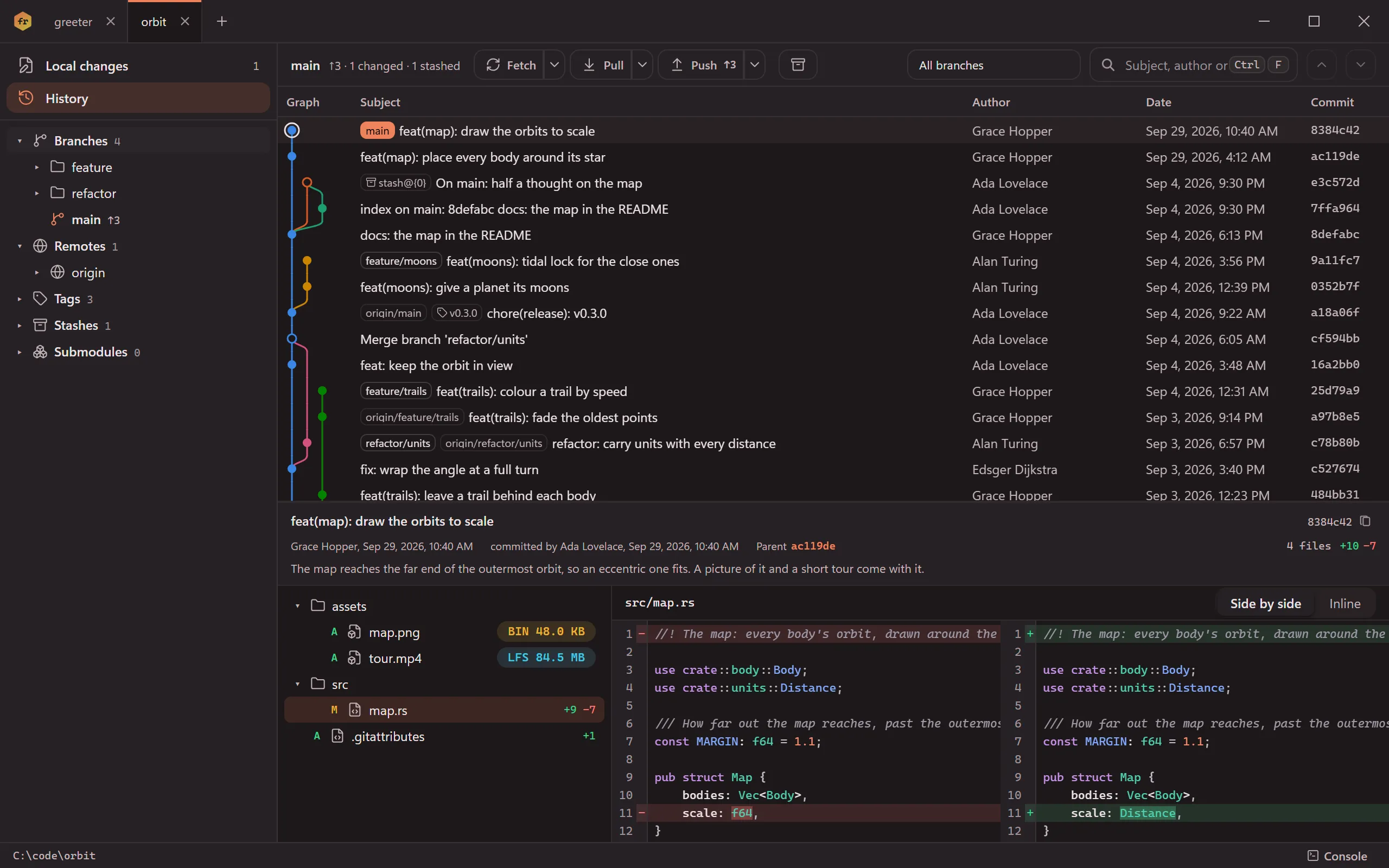
read the same way, in-process. It is laid out as Fork lays a git client out -
tabs of repositories along the top, a column of refs on the left, the graph of
the history beside it - and it draws its own title bar, so the tabs sit in it
rather than in a band under it.
Get it
Section titled “Get it”There is no installer yet: the window’s installers wait for code signing, since an unsigned one is what SmartScreen and Gatekeeper turn away. CI builds them for every platform on every push, and the window builds from a checkout:
pnpm installpnpm tauri build # or `pnpm tauri dev` to run it from the sourceSee CONTRIBUTING for what it needs.
Opening repositories
Section titled “Opening repositories”Each open repository is a tab. A repository opens
- from Open repository… (Ctrl+O), which asks for a folder;
- from Recent, the repositories opened lately, in the
+menu after the tabs and on the empty window; - by dropping a folder on the window - or a file: a path inside a working
tree opens the repository around it, as
git -Cdoes; - from a terminal:
furca-desktop PATHopensPATH. With the window open already, the path opens as a tab in it and the window comes forward - there is one window, and its tabs are the one list of what is open.
Opening a repository that is open already brings its tab forward instead of opening a second one, however the path was written. Two tabs with the same directory name add their parent’s, so the bar never shows two it cannot tell apart.
| Keys | |
|---|---|
| Ctrl+O | Open a repository |
| Ctrl+W, Delete on a tab, a middle click | Close the tab |
| Ctrl+Tab, Ctrl+Shift+Tab | The next or the previous tab |
| Ctrl+1 … Ctrl+8, Ctrl+9 | That tab, the last tab |
Tabs are dragged along the bar to change their order; a strip too long for the bar scrolls with the wheel. The keys are read by their place on the keyboard, so they work on any layout.
Sessions
Section titled “Sessions”A session is a set of tabs saved under a name: Save tabs as a session… in
the + menu. Opening it later replaces the open tabs with its own, in its
order, with the one that was in front in front again. Saving under a name
that is taken replaces that session, and the dialog says so first.
The line is a session that is never saved: every repository your
rigger record keeps - the list
furca line reads - fetched from the record each time
it opens, so a project added to the record is in it the next time. It is
offered only where rigger is installed.
A repository of a session that is no longer there is left out, and the window says which.
The left column
Section titled “The left column”At the top are the two things the middle of the window shows of a repository:
Local changes, with how many files differ from HEAD, and History. Under
them are the repository’s refs:
| Section | What it shows |
|---|---|
| Branches | Local branches, in folders by the / in their names. The branch HEAD is on is in bold with its mark in the accent; ↑2 ↓1 is how far it is from its upstream, and gone an upstream deleted on the remote and pruned. A right click checks one out, branches from it, renames it, sets what it follows or deletes it - see Branches and tags. |
| Remotes | Each remote with its remote-tracking branches, in folders the same way. Pointing at a remote shows its address, without any password written into it; a right click fetches, prunes, edits or removes it - see Fetching, pulling and pushing. |
| Tags | Newest version first: v1.10.0 comes before v1.9.0. A right click checks one out on no branch, pushes it or deletes it. |
| Stashes | The stash, newest first, by the message git wrote. Choosing an entry opens it under the graph, with what can be done to it - see Stashing. |
| Submodules | Each submodule by its path, marked not checked out when it is not, and moved when what is checked out is not the commit the repository records. |
The distances are against the last fetch: the window reads this machine only and asks no remote until you fetch. The column is one control - Tab reaches it once, the arrows move inside it, Right and Left open and close a folder. Choosing a branch, a remote branch, a tag or a stash entry takes the graph to its commit.
The graph
Section titled “The graph”Beside the column is the history, in the order git log --all --date-order
lists it: a commit is never below one of its parents, and among the commits
that could come next the newest goes first. Each line of descent is a lane of
its own colour, and a branch keeps its lane from its tip down to where it forked
off, so the eye can follow it. A hollow dot is a merge; the commit HEAD is on
has a ring.
| Column | |
|---|---|
| Graph | The lanes. A history wider than sixteen lanes is cut at the right edge of the column. |
| Subject | The first line of the message, after what points at the commit: the branch HEAD is on in the accent, other branches, remote-tracking branches, tags and stash entries. |
| Author | Who wrote it; pointing at the name shows the address. |
| Date | When it was written, in your language’s format. |
| Commit | The short id. |
Above the graph, the branch HEAD is on and how far it stands from its
upstream, with what is changed, untracked and stashed. History of shows
the history of one branch - local or remote-tracking - instead of everything;
the commit you had chosen stays chosen when it is in that history too.
The graph is read in pages as it scrolls, and the history is laid out in the background while the first screen is already there: a history of a hundred thousand commits opens as fast as one of a hundred. See ADR 0012.
Searching
Section titled “Searching”Ctrl+F searches the history: the words of a subject, an author’s name or address, or the start of a commit’s id - four hex digits or more, as git takes an abbreviated id. Case does not matter. The search goes through the whole history, the first matches arrive at once, and the window moves to the first one from where you are; the places found are marked in each row.
| Keys | |
|---|---|
| Enter, Shift+Enter | The next or the previous match |
| Escape | End the search |
With nooma on the PATH, the search asks
its history of the repository too, which reads the whole message: a commit
whose reason is written only in the body of its message is found, and marked
in the message. nooma reads a repository’s history the first time it is
asked and keeps it, so the first search there takes a moment longer. Without
nooma the search is furca’s own.
Moving through the history
Section titled “Moving through the history”The graph is one control: Tab reaches it once.
| Keys | |
|---|---|
| Up, Down | The commit above or below |
| Page Up, Page Down | A screen up or down |
| Home, End | The newest commit, the first one |
A commit, a fetch or a checkout made in a terminal shows up as it happens: the
window hears HEAD and the refs of the tab in front move. A tab is read again
when it comes forward too, and when the window gets the focus back. The graph is
laid out again only when a branch, a tag or HEAD moved.
A commit’s details
Section titled “A commit’s details”Under the graph is the commit you chose - the one HEAD is on when a
repository opens, as Fork opens one. Its header says who made it and when, its
id (a click copies it), its parents (a click takes the graph there), the whole
message, and how many files and lines it changed. The commit is compared with
its first parent: a merge shows what it brought into the line it was merged
into.
Below the header, on the left, are the files it changed, in their folders - a
folder that only holds another is one row, src/lib. Each says how it changed
(A added, M modified, D deleted, R renamed, C copied) and,
at the right edge, the lines it added and removed. A file that is not text says
what it is and how large instead:
| BIN | A binary committed as it is. Marked in the warning colour: every version of it stays in the history for good, which in a public repository is the most expensive mistake a commit can make. |
| LFS | A file in git LFS. The size is the file’s, not the pointer’s. |
| SUB | A submodule moved to another of its commits. |
On the right is the change of the file chosen, as git diff counts it, with
its language’s colours: Side by side keeps the two versions level, line for
line; Inline shows the removed lines over the added ones. A removed line is
marked − and an added one +, so the change reads without colour too, and
the characters that changed inside a line are marked again. Unchanged
stretches fold away to a line saying how many there are - a click opens them -
so a long file opens as fast as its changes allow. The header above the change
names a rename and how alike the file stayed, a change of mode, and line
endings that changed - CRLF → LF - which otherwise show as every line
changed for no visible reason.
The window keeps where you put the borders between the graph, the files and the change, and which way changes are drawn, with the tabs.
Local changes
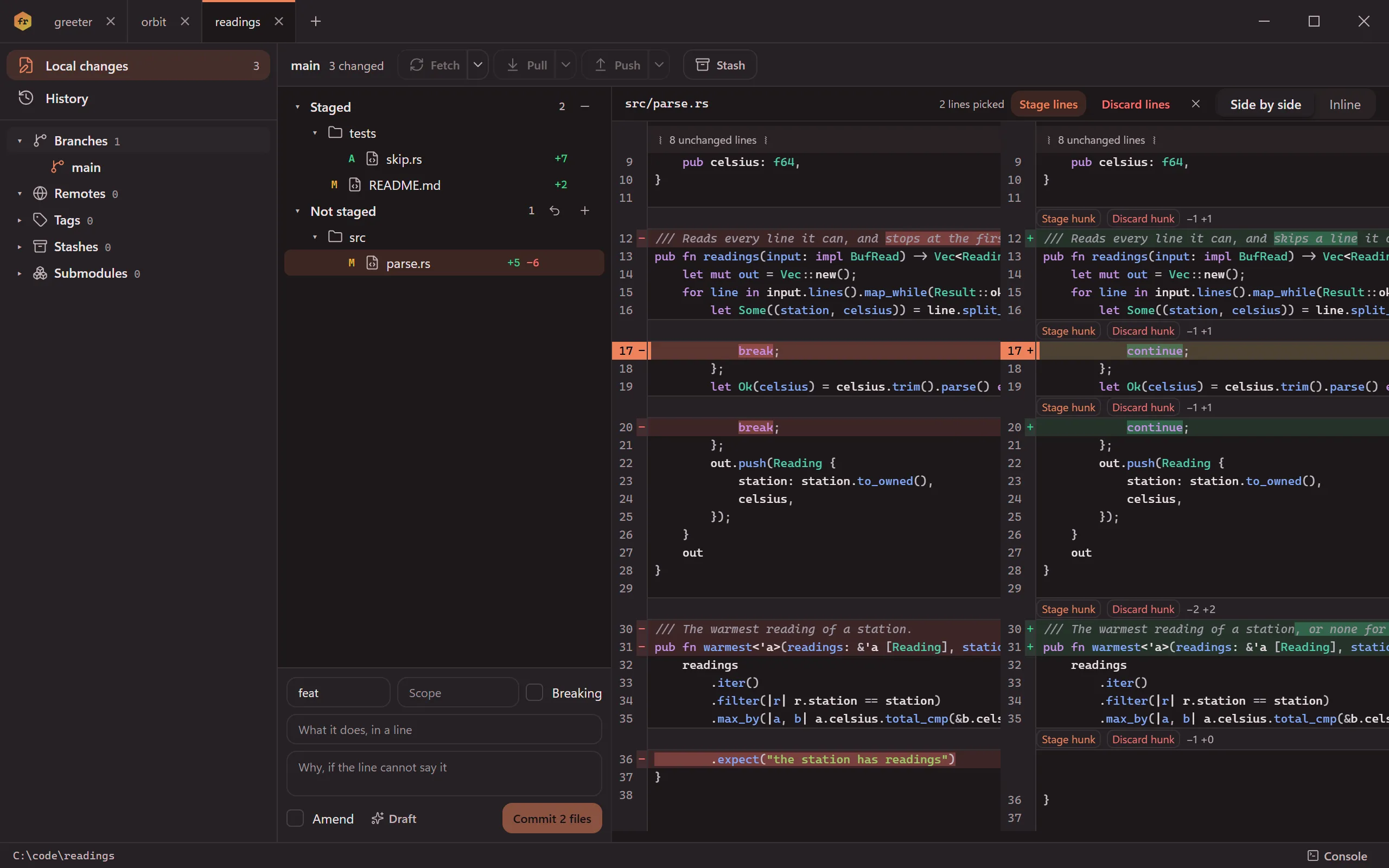
Section titled “Local changes”Local changes (Ctrl+L; Ctrl+H goes
back to the history) shows what differs from HEAD, kept up to date as files are
saved. Nothing needs refreshing: save a file in your editor and its row and its
open change follow in a moment.
| List | What it holds |
|---|---|
| Conflicted | Paths a merge, a cherry-pick, a revert, a rebase or a stash left unresolved, and how the two sides disagree. Choosing one opens it to resolve. |
| Staged | What the next commit would change. |
| Not staged | What the index does not have. A file both staged and changed again is in both lists, and each shows its own change. |
| Untracked | Files git does not track and does not ignore, each on its own. |
The lists are one control, as the left column is: Tab reaches it once
and the arrows move through all of them. A row says what a commit’s file says -
how it changed, its lines, and BIN, LFS or SUB with a size for a file
with no lines - and the warning on a binary comes while it can still be left out of
the commit. What a file holds is read just after the list arrives, so a change
across thousands of files lists them at once and fills in. The window is given
the first thousand rows of each list and says how many more there are;
furca status prints them all.
On the right is the change of the chosen file, drawn as a commit’s is, against
what is on disk: a file is compared as git add would take it, so with
core.autocrlf on, a checkout’s \r\n is no change. It keeps your place when
the file is saved again. A file staged in a terminal moves to the other list with
the choice following it; one that has gone from every list hands over to the row
now in its place.
What git ignores never wakes the list, so a build in an ignored folder costs nothing. See ADR 0014.
Only the tab in front is watched; the others are read when they come forward. A working tree that cannot be watched - on Linux, one past the system’s limit of inotify watches, where each folder takes one and what git ignores takes none - is read when the window gets the focus, and the foot of the window says so. See ADR 0016.
Committing
Section titled “Committing”Staging goes through your own git, 2.25 or later, one command at a time, so the
index is never something only furca understands. Every row moves across with the button at its
edge, or Space with the keyboard on it: to Staged from the other two
lists, and back. A folder moves what is under it in that list, and a list’s own
row moves all of it, however long it is. A file staged as a rename takes its old
path back with it.
A file changed in place has a bar above each change, with Stage hunk, or Unstage hunk in Staged. Only that hunk moves, byte for byte, whatever the file’s encoding and line endings. If the file has moved on since it was drawn, git refuses the patch and nothing changes: the change on the screen is read again and you press again. Added and deleted files are one hunk, which their row moves.
Less than a hunk is a few of its lines. Click a changed line’s number to pick it, drag over the numbers to pick a run of them, and Shift+click to pick from the last one pressed; clicking a picked line lets it go. In Inline a removed line has no number of its own, and is picked by clicking the line itself. A picked line carries the accent from its number across its text, and the header says how many are picked, with Stage lines (Unstage lines in Staged), Discard lines and a button that lets them all go. Absorb…, there and on a hunk’s bar, puts them into a commit already made instead: see absorbing.
Each line goes where it stood: picking the removal of one line and the addition
that replaced it changes that line and leaves the rest of the hunk as it was. A
removed line left out stays; an added line left out is not added. The lines go
through git apply as a hunk does, so a file that moved on since is refused, and
picks the file no longer has are let go when it is read again.
Discarding
Section titled “Discarding”Discard hunk, Discard lines, and the button beside a row’s Stage put a change back as the index has it, so what is staged stays. In Untracked the same button deletes the file. A folder discards what is under it in that list, and a list’s own row discards all of it. Delete does the same with the keyboard on a row.
Nothing keeps a change that was never staged, committed or stashed, so the window
asks first and says what goes; a click beside the question does nothing, and
Esc keeps it. The work is git’s: git restore --worktree for a file,
git clean for an untracked one and git apply for lines, which reads and writes
the file through the same filters and line endings as a checkout. See
ADR 0020.
The commit
Section titled “The commit”Under the lists is the commit to make: its type, scope and description, a body, and
Breaking for the ! of a Conventional Commit. Ctrl+Enter
commits. The author, signing and hooks are your git’s, as in a terminal.
| What it says | |
|---|---|
| Your commit-msg hook | Your hook is asked each time typing pauses, the one git commit will run, wherever core.hooksPath puts it, and what it refuses is shown in its own words. This needs git 2.36; on an older one the hook is heard when you commit. |
| The message | It is read with the parser the release engine reads commits by: not Conventional, an unknown type, a long subject, a final full stop, another language. All of it is advice. No type writes a subject as you typed it, for a repository that does not use the convention. |
| What is staged | Line endings that changed, which read as every line changed; files of 5 MB or more that are not in git LFS; an assistant’s files. See furca doctor. |
The button stops only at what git would refuse: nothing staged, no description, a merge left unresolved. It also stops while a release is running in this repository, from a terminal or a window, since whatever is staged goes into the release’s commit.
Amend fills the form from the last commit, and what is staged goes into it; leaving the box again brings back what you had typed. It warns when that commit has been pushed, because amending rewrites what others may already have.
Draft asks Claude Code for a message, when its CLI is on this machine; without it there is no button. Nothing is sent until you press it, and then what is staged goes to your own CLI, under your own session. Its draft lands in the form to read and change, and it commits nothing. It is off while the form holds something you typed. See ADR 0019.
Stashing
Section titled “Stashing”Stash above the history puts every change away - what is staged, what is not,
and untracked files - with a message to know it by, and leaves the working tree as
HEAD has it. It is git stash push --include-untracked, and off when there is
nothing to put away. Where the bar is short it is its icon alone.
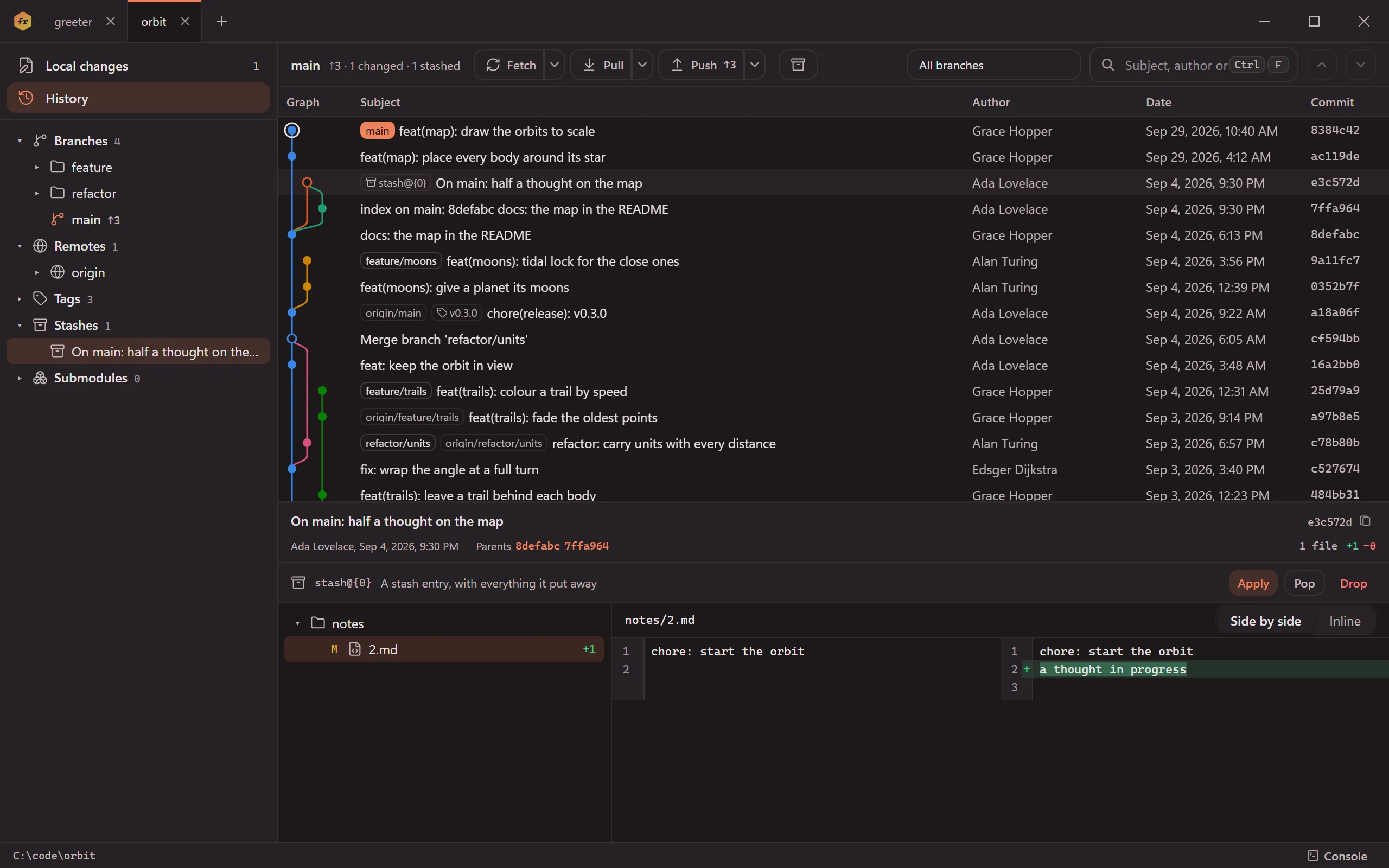
Choosing an entry in Stashes opens it under the graph as a commit is opened, with what it holds against the commit it was made on: the files that were tracked, and the untracked ones it put away as added. Over its files is what can be done to it:
| What it does | |
|---|---|
| Apply | Applies it to the working tree and keeps it. |
| Pop | Applies it and drops it. |
| Drop | Drops it without applying it, once you have said so. |
A change that meets one the working tree has is a conflict, left in the file to be
resolved as git leaves it, and git’s own words say where; a pop that met one keeps
the entry. An entry is named by its place, stash@{1}, and checked against the
commit the window read before anything is done to it: one made or dropped since in
a terminal moves every entry after it, and the window refuses rather than act on
another.
Fetching, pulling and pushing
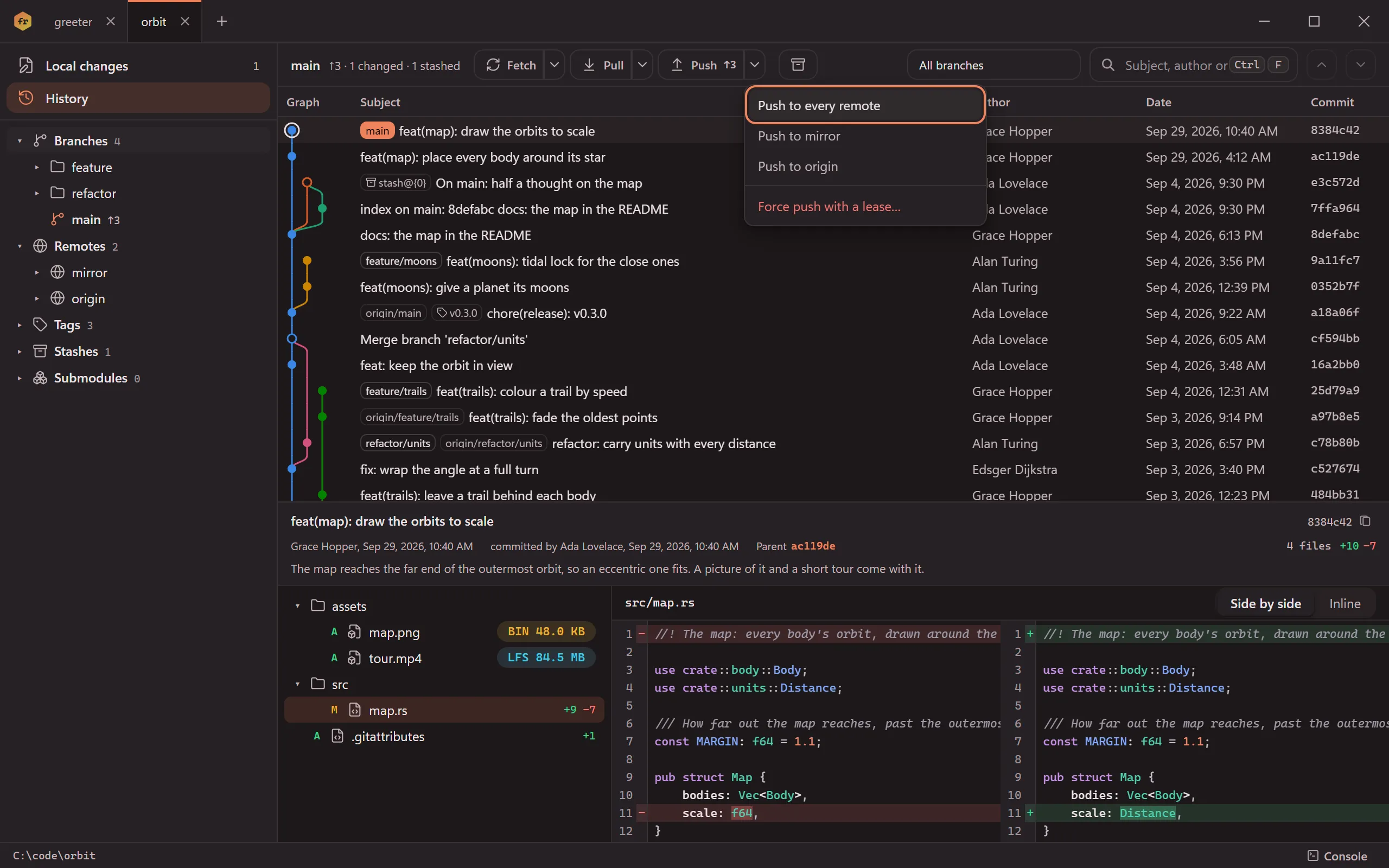
Section titled “Fetching, pulling and pushing”Above the history, beside Stash, are Fetch, Pull and Push, each with
a menu of the other ways to do it. Each is a run of your own git: its credential
helper and ssh-agent answer for it, as in a terminal, and furca never asks for a
password and keeps none. Pull says how far the branch is behind its upstream
(↓2), Push how far ahead (↑1), as of the last fetch. Where the bar is short,
with the history’s search beside them, the buttons go down to their icons and keep
their names for a pointer and a screen reader.
| Button | What it does | In its menu |
|---|---|---|
| Fetch | Fetches every remote: their branches and tags as they are now. | Fetch and prune, which also takes away remote-tracking branches whose branch is gone; fetch one remote; Add remote…. |
| Pull | Pulls the branch it follows into the current one, as your git is configured to - pull.rebase, pull.ff. A merge takes git’s own message; no editor opens. |
Pull, merging; pull, rebasing your commits on top; pull only if it fast-forwards. |
| Push | Pushes the current branch where it goes: its pushRemote, remote.pushDefault or the remote it follows, or the only remote, or origin. A branch that follows nothing follows the one it is pushed to from then on. |
Push to every remote, one after another; push to one remote; Force push with a lease…. |
The annotated tags on the history a push sends go with it, so a release tag reaches a mirror as it reaches the main remote; a plain tag stays. Force push with a lease asks first and says how many commits there the branch does not have: it replaces the remote’s branch only if that still holds what the last fetch saw, so what someone pushed since makes git refuse, and nothing is lost. There is no force without a lease.
While a run goes, the buttons wait for it, and the foot of the window says what it
is doing in git’s own words - Pushing to origin · Writing objects 45% - and then
what came of it. What git refused is shown under the bar, in its words, until you
put it away or start the next run; every remote that refused a push to every remote
is said apart, after the ones that took it. Staging goes on while a fetch runs; a
pull waits for staging, and staging for a pull. While a release runs in the
repository, a push, a pull and a change to the remotes wait for it - the release
pushes and tags itself.
A right click on a remote in the left column - or the menu key with the column’s cursor on it - fetches it, prunes it, edits its name and address, or removes it, once you have said so. On Remotes itself it fetches them all or adds one; a remote added is fetched at once. Renaming moves its remote-tracking branches, and the branches that follow it follow it under the new name; removing one leaves the remote itself untouched. The address is shown without a password written into it, and one kept there stays unless you change the address. See ADR 0021.
A key with a passphrase that is not in ssh-agent, or a server ssh has never met,
cannot be answered from the window: git’s words say so, with where to do it once -
ssh-add, or ssh to the host in a terminal.
Branches and tags
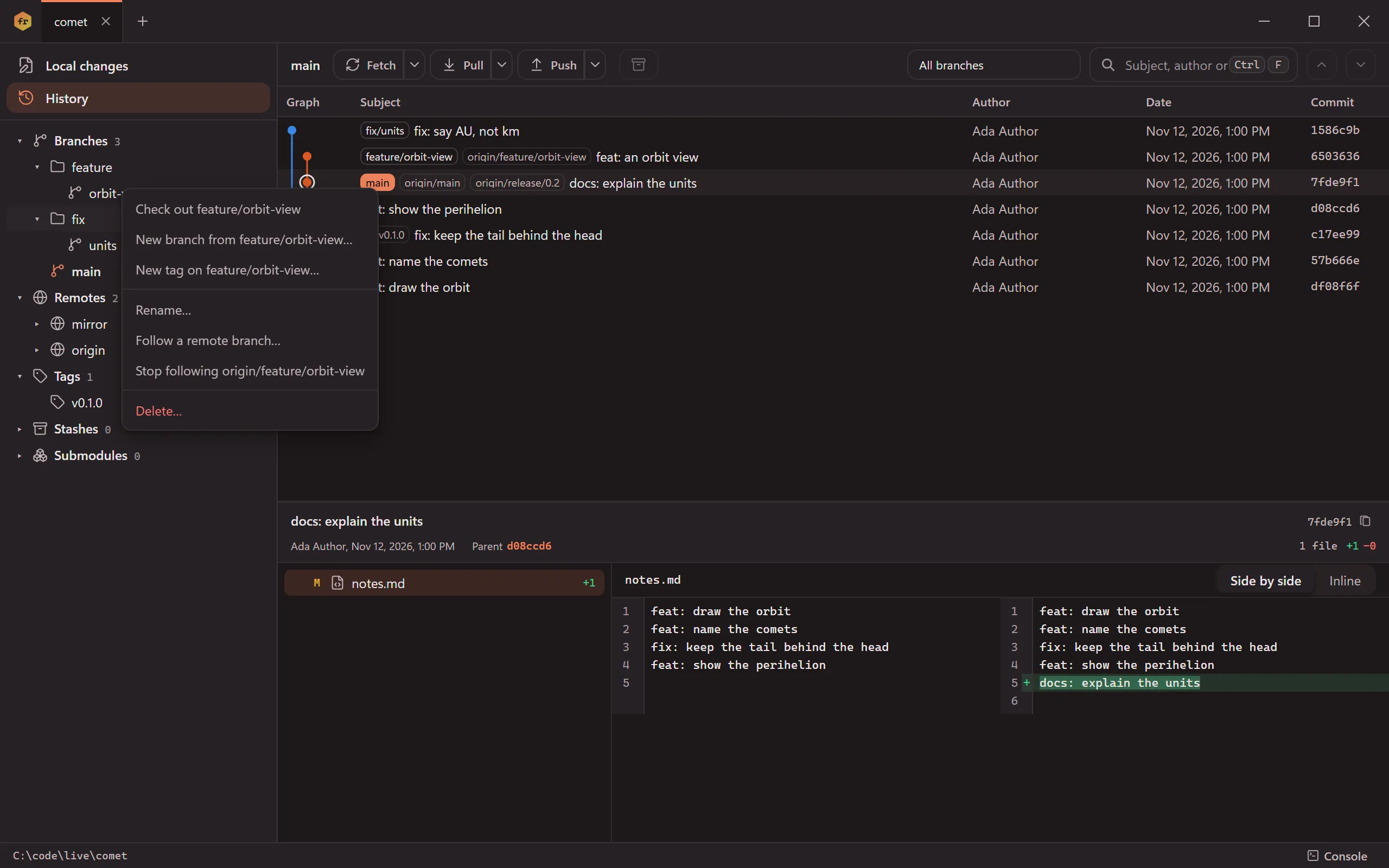
Section titled “Branches and tags”A right click on a branch, a remote branch or a tag in the left column - or the
menu key with the column’s cursor on it - says what can be done to it, and so does
a right click on a commit of the graph. Each is a run of your own git, so a
post-checkout hook runs as in a terminal.
| Over | In its menu |
|---|---|
| A branch | Check it out; a new branch or a new tag on it; merge it into the current branch; rename it; have it follow a remote branch, or stop following one; delete it. |
| A remote branch | Check it out as the local branch of its name - made to follow it when there is none, the one there when it follows it already; a new branch from it; merge it into the current branch. |
| A tag | Check it out on no branch; a new branch from it; merge it into the current branch; push it to a remote, or to every one; delete it. |
| A commit of the graph | Check out a branch that is on it; check the commit out on no branch; a new branch or a new tag on it; merge it into the current branch; cherry-pick it onto the current branch; revert it. |
| Branches, Tags | A new branch, or a new tag, on the commit HEAD is on. |
A new branch is checked out once it is made, unless you clear the box. It follows
nothing until its first push, and then its own name on the remote it went to - only
one made from a remote branch under that branch’s own name follows it from the
start, whatever branch.autoSetupMerge says. A checkout carries your changes along
where they do not meet the files it checks out; where they do, git refuses in its
own words under the bar, and nothing moves. A commit or a tag is checked out on no
branch only when the menu says so; the bar then says Detached HEAD, and the graph
marks the commit HEAD.
Deleting a branch counts first what only it holds: the commits no other branch,
remote branch or tag has. The question says how many go with it and where it was,
and the foot of the window says it again once it is gone - which is what it takes to
make it again. The branch HEAD is on cannot be deleted.
A new tag with a message is an annotated tag: a push of its branch takes it along. Without one it is a bookmark that stays on this machine until it is pushed by name - from its menu, or from the box under the message as it is made. Deleting a tag asks which remotes to take it away from too, since a remote that keeps it gives it back on the next fetch. Pushing a tag and taking it away from a remote are runs on a remote like a push: the foot of the window says how far they have got. See ADR 0022.
Merging and conflicts
Section titled “Merging and conflicts”Merge … into … from the menu of a branch, a remote branch, a tag or a commit
asks first, with the one choice git leaves open: Always make a merge commit,
even where the current branch only has to move along to what it merges. git merges
with its own message - Merge branch 'feature/retry' - and your hooks run.
Cherry-pick puts a commit’s change onto the current branch as a new commit with
its own message; Revert makes a new commit that undoes one. A merge commit is
picked or reverted against its first parent: what it brought into the line it was
merged into. Each asks first, and says what the new commit will be.
One that meets a conflict has not failed: it stops halfway, and a bar across the top
says so until it is done - what it is bringing in, how many files are still in
conflict, and the way on. Resolve opens them in Local changes. Continue
makes the commit with the message git wrote, once nothing is left in conflict, and
goes on with the next commit of a pick or a rebase; Skip leaves out the commit it
stopped at; Abort puts everything back as it was before it began, after a
question. The bar is there for an operation begun anywhere - a merge in a terminal,
a pull that rebased and stopped - and no other merge, pick or revert begins while it
is. While one is halfway the commit form starts from the message git wrote for it -
Merge branch 'feature/retry', the message of the commit a rebase stopped at - when
nothing is typed in it. If your commit-msg hook refuses that message, change it
there and commit: that finishes the merge too.
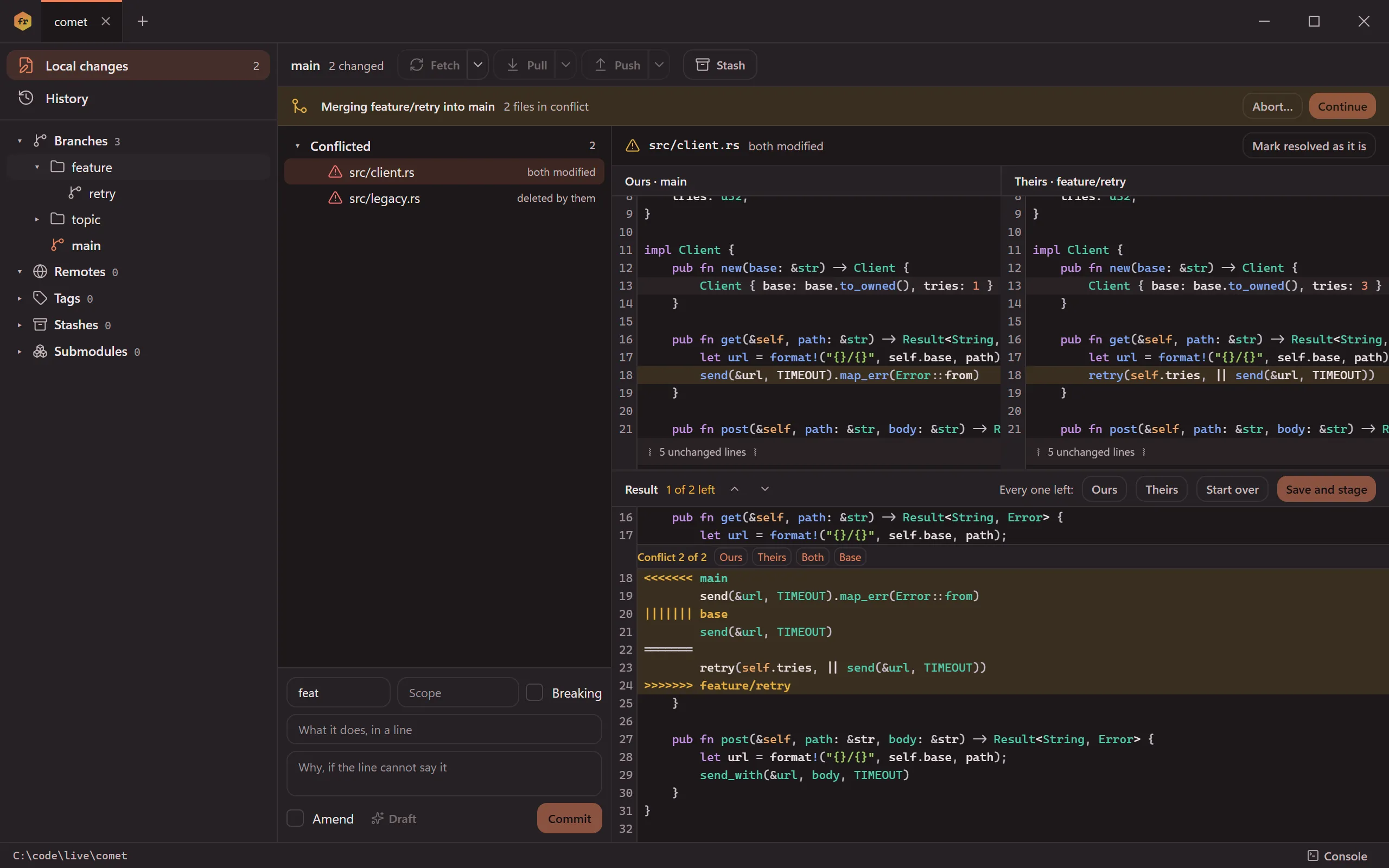
A file in conflict opens in three panes. Above, Ours - the current branch - and Theirs - what is being brought in - are kept level, the lines that conflict marked in each. Below is the Result, the file being written: everything that goes in on its own is already in - a change only one side made, a change both made alike - and each conflict is written out between git’s markers, with the common ancestor’s lines between them, as a file git left looks. A bar over each conflict takes Ours, Theirs, Both - ours, then theirs - or Base, the ancestor’s lines, neither change; the arrows go from one conflict to the next in all three panes, and Every one left takes a side for all that remain. The result is an editor: type into it, and Ctrl+Z takes back a choice as it does a keystroke. A conflict is resolved once no markers are left in it, and Save and stage writes the file - through your repository’s filters and line endings - and stages it, and it leaves the list.
The conflicts are read from what git keeps of the three versions, not from the
markers in the file, so the resolver is the same whatever merge.conflictStyle
says. A file one side deleted, or one that is not text, is taken whole: the pane says
what each side has, with a button for each - keep this file, or delete it. Mark
resolved as it is stages the file as the working tree has it, edited by hand or in
another editor; it asks first while git’s markers are still in it. A file whose
markers are already gone says so, since resolving it here would write over what was
done elsewhere. See
ADR 0023.
Rebasing, squashing and absorbing
Section titled “Rebasing, squashing and absorbing”Rebase … onto … from the menu of a branch, a remote branch, a tag or a commit replays the commits the current branch has and the other does not on top of it, one by one, and moves the branch there. It asks first. Changes not committed are put away and brought back after, by git’s own autostash. A rebase that meets a conflict stops halfway like a merge: the bar says which step of how many it stopped at, the files open in the resolver - where Ours is the new base and Theirs the commit being replayed - and Continue, Skip and Abort go on from there.
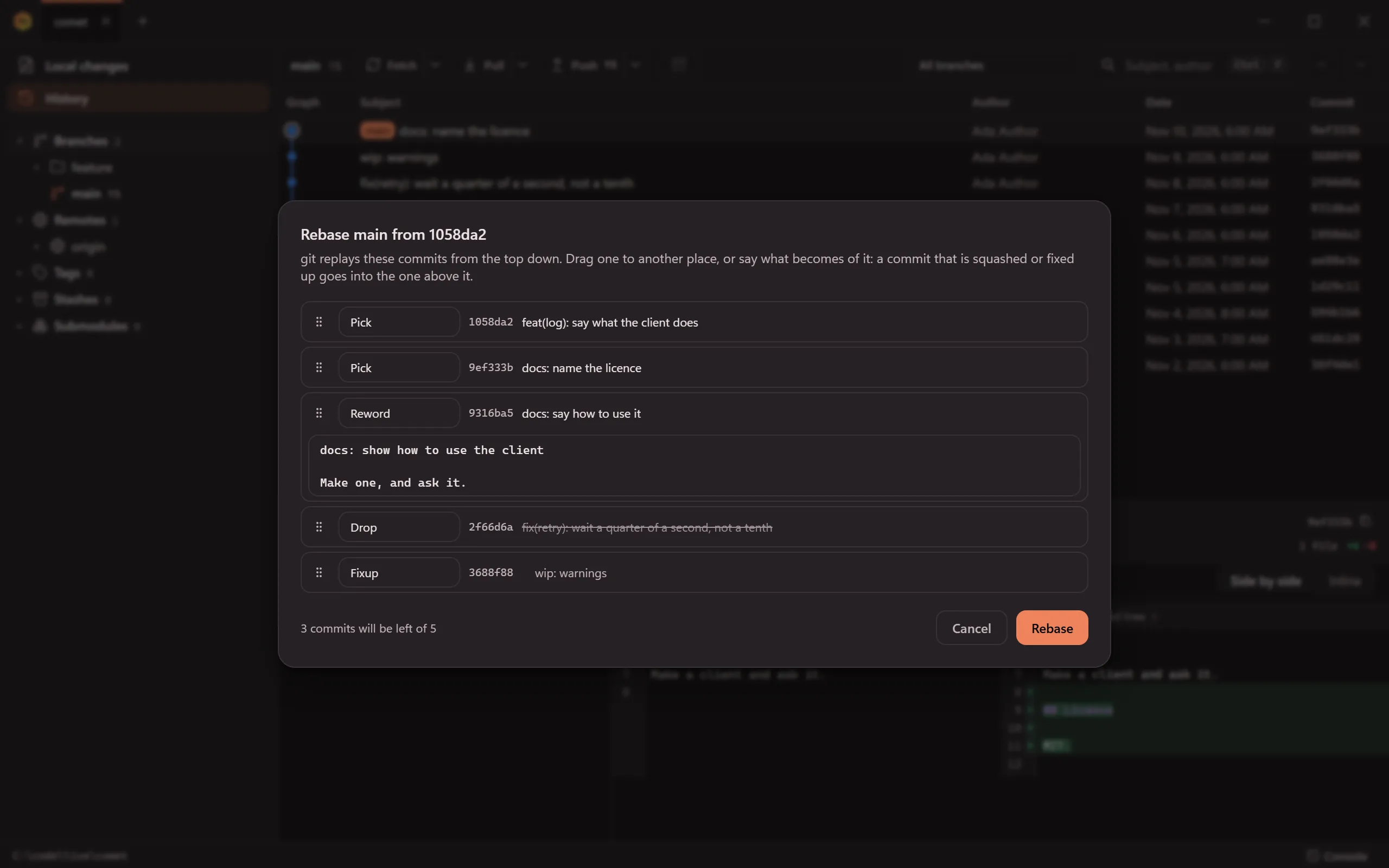
Rebase interactively from … on a commit of the current branch opens that commit and every one after it as a list, oldest first, the way git replays them:
| What becomes of a commit | |
|---|---|
| Pick | Replayed as it is. |
| Reword | Replayed under another message, which opens under the row to edit. Your hooks judge it as they judge any commit. |
| Squash | Folded into the commit above it, their two messages one after the other. |
| Fixup | Folded into the commit above it, its own message left out. |
| Drop | Left out. |
Drag a row by its grip to another place, or move it with the up and down arrows while the grip has the focus. The foot says how many commits will be left, and Rebase stays off while the list says nothing new, or while the first commit is set to fold into a commit that is not there. Commits the branch’s upstream has already are marked pushed: rewriting them parts the branch from what was pushed, and the next push has to force it. A range with a merge in it is not offered a plan
- a rebase would replay what the merge brought in commit by commit and leave the merge out - so rebase the commits after it.
Squash down to … makes one commit of the commit you chose and every commit after it, in one step: the dialog starts from their messages one after another, to edit. Nothing can conflict - the one commit holds exactly what the branch held - and it keeps the first commit’s author. It waits while something is staged, which would otherwise go into the commit unasked.
Absorb puts a change into a commit that is already made, as if it had been made with it - a typo found two commits later, a line that belongs with an earlier fix:
- on a hunk’s bar in Local changes, or beside Stage lines once lines are picked, Absorb… asks which commit. The list is the line of commits the branch came by, newest first, with the ones that changed this file marked and the newest of them chosen;
- Absorb what is staged into … in a commit’s menu takes everything staged.
Only what you named goes in: other staged changes stay staged, and what is not staged stays in the working tree. The commits after it are replayed on the result. If the change does not fit that commit, or a later commit does not replay over it, nothing is changed and the window says so - an absorb never leaves a rebase halfway.
After any step that moves the branch - a rebase, a squash, an absorb, a cherry-pick, a merge - the graph goes to the commit the branch is on now. See ADR 0024.
The console
Section titled “The console”Console at the foot of the window (Ctrl+J) lists every run
of git the window made in this repository: when, the command as you could type it (a
click copies it), how long it took, and how it ended. Under it is what it was given,
the paths of an add, a commit’s message, a patch, and what git said. A password or
a token in an address is taken out before it gets here.
It holds what this window did, the release engine’s pushes and the background’s commit-graph included, up to the last 500 runs of each repository, and starts clean with the window. Reads go through gitoxide, in-process, and are not here. The button turns red when the last run failed.
Releasing
Section titled “Releasing”A repository with a release.toml has a third row
above the left column: Release (Ctrl+R). It is
furca release in a window, and the same engine
decides everything in it.
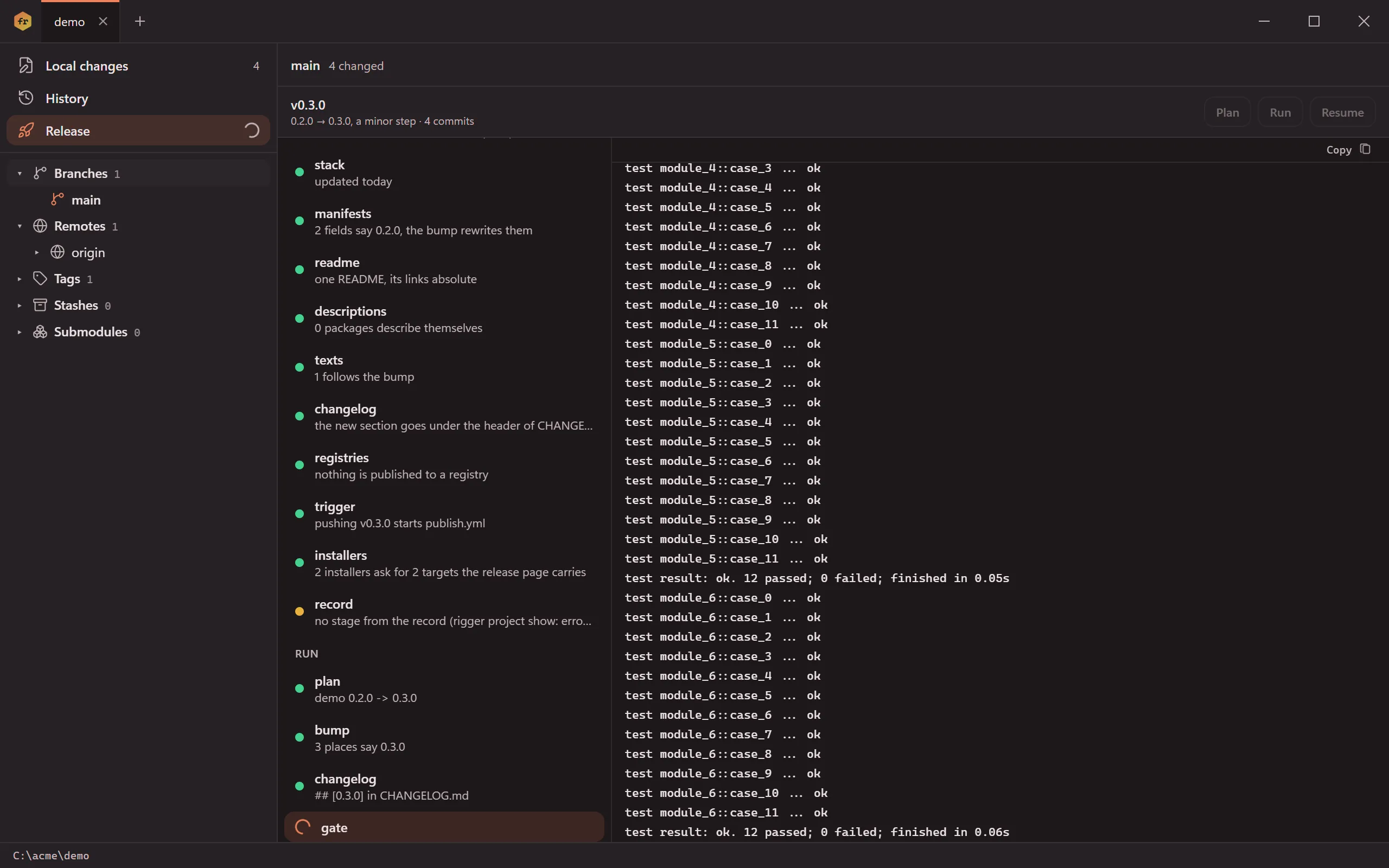
On the left are the checks of the plan, then the steps of a run. A step that has not run says what it would do; one that has says how it went, and what it printed. While a run goes, the panel follows the step it is on and the end of its log, until you choose another row or scroll away. The newest 20 000 lines of each step are kept.
| Button | What it does |
|---|---|
| Plan | Reads the plan again: the number, and what stands in its way. It changes nothing. |
| Run | Carries the plan out, and asks first. It needs a plan with no red check. |
| Resume | Carries on a run that stopped past its commit, and asks first. It is the only way on from there. |
Red stops the release, as it does in a terminal. A red check means there is nothing to run; a step that stops says why, in the bar across the panel. A stop before the commit takes its edits back, and a stop after it waits for Resume. A run started in a terminal shows here as far as its checkpoint says, and the run keeps going if you move to another tab.
Closing the window stops a run where it is, as closing a terminal would, and the checkpoint knows where that was. See ADR 0015.
What the window writes
Section titled “What the window writes”Nothing in your history unless you press Commit, Pull, Merge, Cherry-pick, Revert, Continue, Run or Resume; nothing on a remote unless you push, run or resume; nothing in your working tree, your stash or your list of remotes unless you stage, discard, stash, pull, merge, resolve or change a remote. A fetch moves only remote-tracking branches and tags. One file, in the background: when a repository has no
commit-graph file, or one more than a thousand commits behind, the window has
git write one - git commit-graph write --reachable --split, the file git gc
writes on its own - and the status line along the foot says so. Without it the
graph of a long history costs seconds to open; with it, milliseconds. A
repository with core.commitGraph set to false is left alone. See
ADR 0010.
What the window remembers - the open tabs, the recent list, the sessions, the
layout - is
one file, state.json, in the app’s data directory: %APPDATA%\com.lacodda.furca
on Windows, ~/Library/Application Support/com.lacodda.furca on macOS and
~/.local/share/com.lacodda.furca on Linux. A file that cannot be read is moved
aside as state.broken.json and the window starts empty.
FURCA_DESKTOP_DATA names another directory for all of it, the webview’s own
profile included - for a run that must not touch the window you use every day.
Such a run is a window of its own: it neither hands its paths to the window you
use nor takes theirs.
The window holds budgets of its own, measured on the built app before every commit and with every release: it is on the screen within 300 ms of its start, in the colours of your theme, and the app and its webview hold under 300 MB with three repositories of 100 000 commits open, each graph laid out to its end - on Windows; Linux’s number, measured without a GPU, is published but not promised. The first diff it opens is on the screen within 300 ms of being asked for, a 5 000-line change side by side and highlighted, and a saved file reaches the status within 50 ms in a working copy of 10 000 files. The first frame with a repository - its column and the first rows of its graph - is measured and published too. See the budgets.